Bin Collection Zones
Let residents type their address and find out which zone they’re in and when their bins are collected. The same pattern works for delivery areas, sales territories, school catchments and service regions.
Setup
- Create a Bin Zones section (handle
binZones). - Add a Geo Maps field (handle
zoneArea). In its settings:- turn Show Location Pin off, because zones are areas, not points
- keep Enable Drawing & GeoJSON on
- set Limit Search to Countries to your country
- Add a Collection Day dropdown field (handle
collectionDay) with the days of the week. - Create an entry per zone and draw its boundary with the polygon tool, or Upload the council’s
.geojsonfile. Use the cut tool to remove areas that aren’t serviced, such as a park.
The template
templates/bins.twig:
{% extends '_layout' %}

{% set address = craft.app.request.getParam('address')|trim %}

{% block content %}
  <h1>When is my bin day?</h1>

  <form method="get">
    <label for="address">Your street address</label>
    <input id="address" type="search" name="address" value="{{ address }}" placeholder="e.g. 175 The Parade, Norwood SA 5067" required>
    <button type="submit">Check</button>
  </form>

  {% if address %}
    {% set zone = craft.entries()
      .section('binZones')
      .zoneArea({ contains: address, country: 'AU' })
      .one() %}

    {% if zone %}
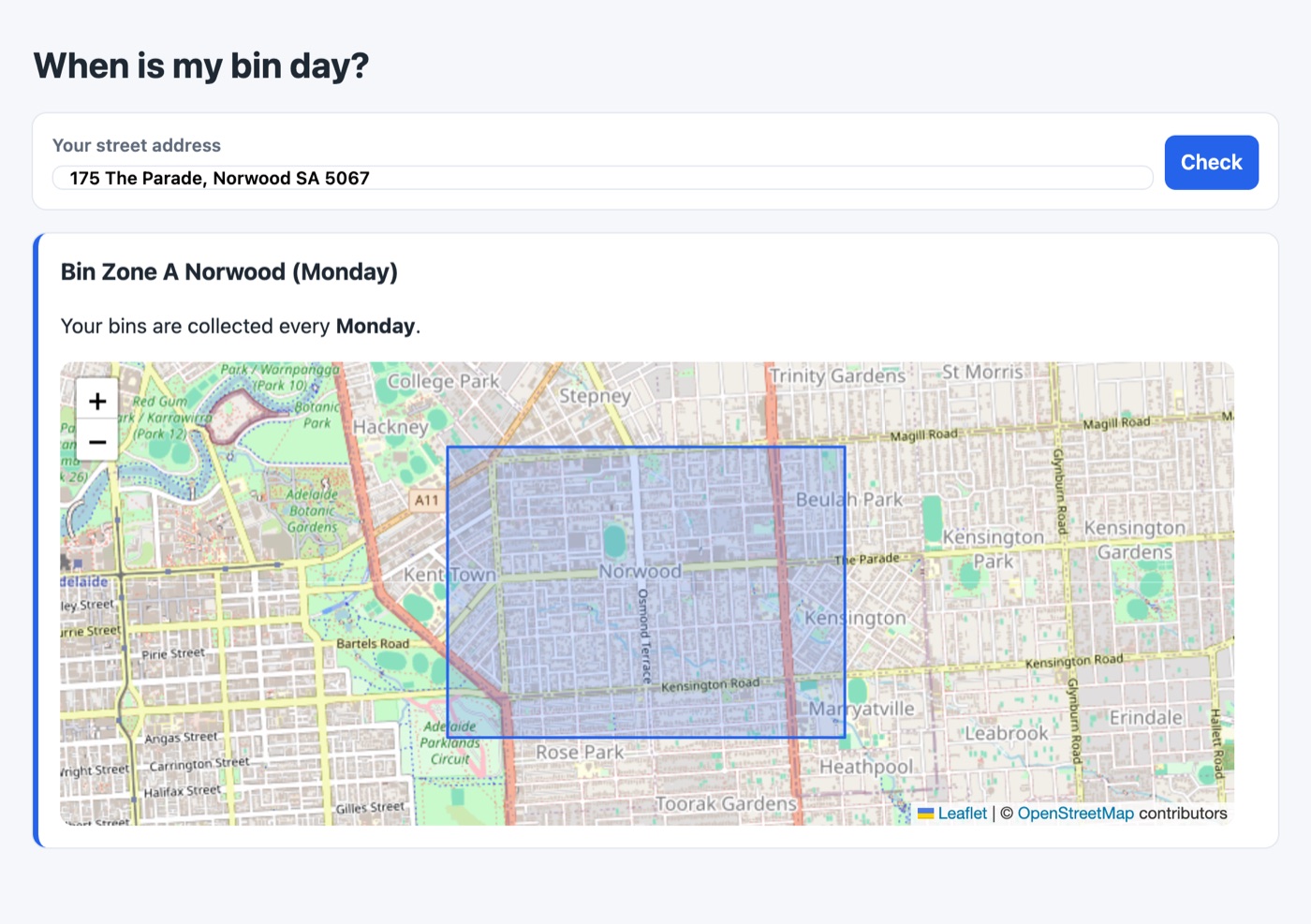
      <div class="result">
        <h2>{{ zone.title }}</h2>
        <p>Your bins are collected every <strong>{{ zone.collectionDay.label }}</strong>.</p>
        {{ zone.zoneArea.embed({ id: 'zone-map', width: 800, height: 360 }) }}
      </div>
    {% else %}
      <p>We couldn’t find a collection zone for “{{ address }}”. Check the address, or contact the council.</p>
    {% endif %}
  {% endif %}
{% endblock %}
contains geocodes the address, finds the zones whose bounding box covers it, then checks each of those shapes exactly. It stays fast with hundreds of zones.
- Holes (cut-outs) are respected, so an address inside the park returns no zone.
- Borders: an address exactly on the line between two zones belongs to one of them, never both.
- Overlaps: if zones overlap on purpose, use
.all()and list every match.
Show the next collection dates
With the collection day stored as a day name, work out the next three dates in Twig:
{% set days = ['Monday', 'Tuesday', 'Wednesday', 'Thursday', 'Friday', 'Saturday', 'Sunday'] %}
{% set day = zone.collectionDay.label %}

{% if day in days %}
  {# Days until the next collection (0 = today) #}
  {% set offset = (days|keys|filter(k => days[k] == day)|first) + 1 - ('now'|date('N')) %}
  {% set offset = offset < 0 ? offset + 7 : offset %}
  <ul>
    {% for week in 0..2 %}
      <li>{{ 'now'|date_modify("+#{offset + week * 7} days")|date('l j F') }}</li>
    {% endfor %}
  </ul>
{% endif %}
Show the address on the map
Add a marker at the address the visitor typed. location accepts an address, which is geocoded (and cached) like the search:
{{ zone.zoneArea.embed({
  width: '100%',
  height: 420,
  markers: [{ location: address, label: address, icon: { url: '/images/you-are-here.svg', width: 28, height: 28 } }],
}) }}
Download the dot used in the screenshot: you-are-here.svg.

Storing data on the shape instead
If your zones come from a GeoJSON file, the collection day may already be a property of each shape. Read it with getGeoJsonData():
{% set shape = zone.zoneArea.getGeoJsonData() %}
{% set props = shape.properties ?? shape.features[0].properties ?? {} %}

Collected on {{ props.collectionDay ?? 'unknown' }}.
Authors can edit shape properties by clicking a shape in the field.
Checking a single zone
To ask “is this address in this zone?”, call contains() on the field value:
{% if entry.zoneArea.contains(customer.address, 'AU') %}
  We deliver to you!
{% endif %}
It also accepts { lat: …, lng: … } or another Geo Maps value, such as a store’s location.
Without a page reload
Look the zone up from JavaScript with GraphQL. Give the public schema access to the Bin Zones section first.
<form id="bin-form">
  <input name="address" placeholder="Your address" required>
  <button>Check</button>
</form>
<p id="bin-result" aria-live="polite"></p>

<script>
  const query = `
    query BinDay($address: String) {
      entries(section: "binZones", zoneArea: { contains: $address, country: "AU" }, limit: 1) {
        title
        ... on binZone_Entry { collectionDay }
      }
    }`;

  document.getElementById('bin-form').addEventListener('submit', async (event) => {
    event.preventDefault();
    const address = event.target.address.value;
    const result = document.getElementById('bin-result');
    result.textContent = 'Checking…';

    const response = await fetch('/api', {
      method: 'POST',
      headers: { 'Content-Type': 'application/json' },
      body: JSON.stringify({ query, variables: { address } }),
    });
    const { data } = await response.json();
    const zone = data?.entries?.[0];

    result.textContent = zone
      ? `${zone.title}: collected every ${zone.collectionDay}.`
      : 'That address isn’t in a collection zone.';
  });
</script>
Replace /api with your GraphQL route, and binZone_Entry with your entry type’s GraphQL name. If you already have coordinates, for example from the browser’s geolocation, use containsCoordinate: { lat: …, lng: … } instead of contains.