The Field
Setting a location
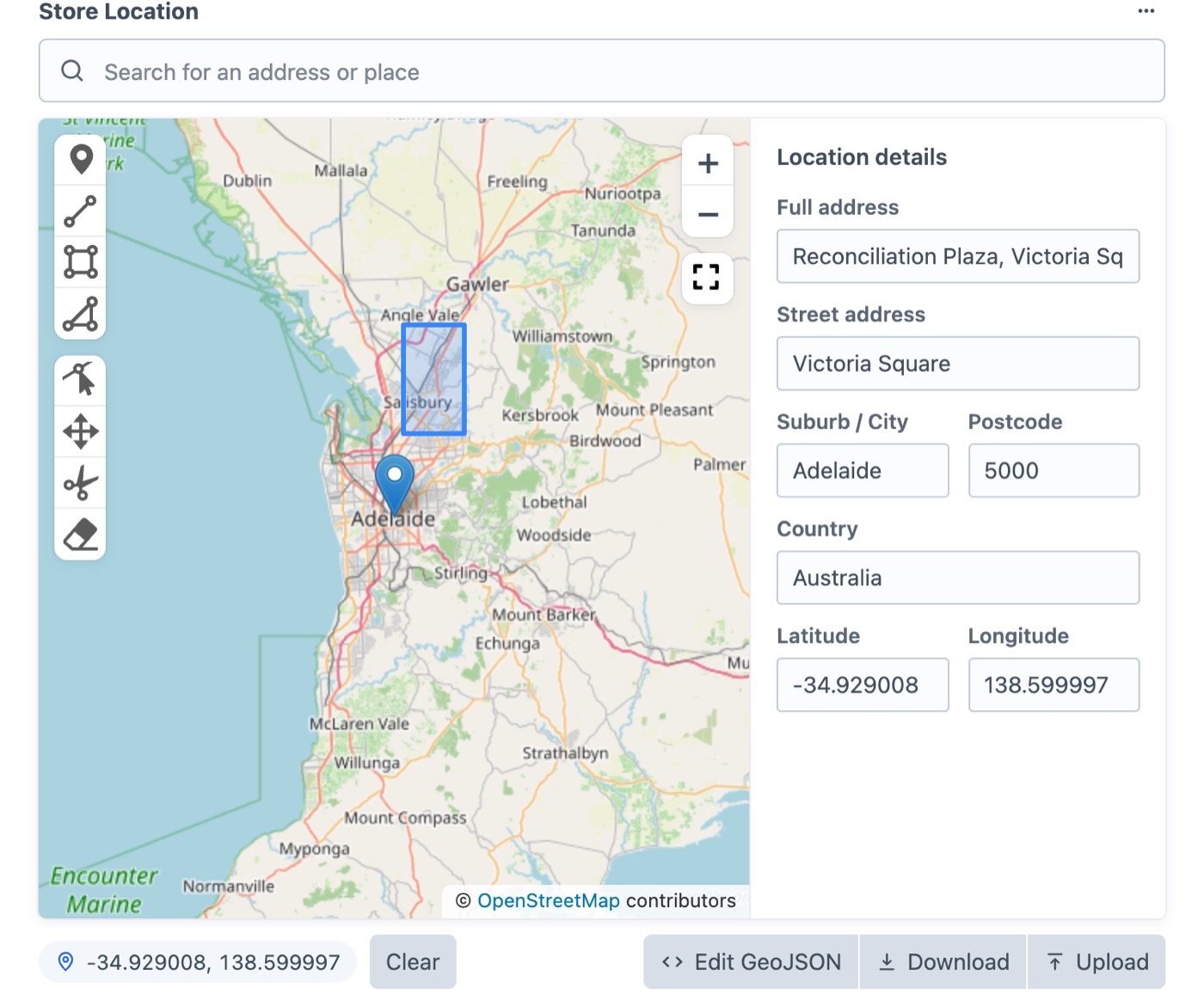
Authors can set a location three ways:
- Search — start typing an address or place and pick a suggestion.
- Click the map — drops the pin where you click and looks up the address.
- Drag the pin — fine-tune the position; the address updates to match.
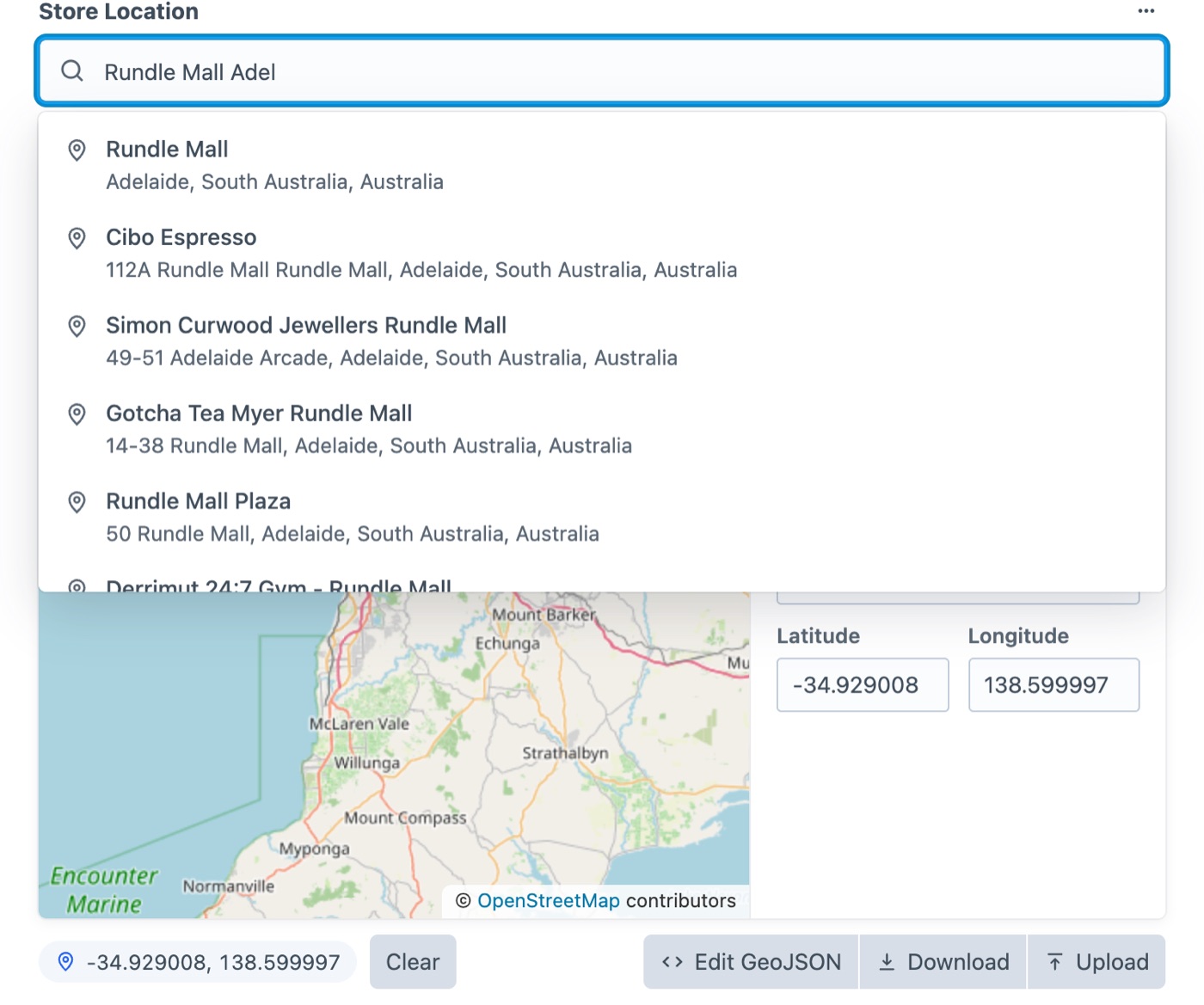
The address details (full address, street, suburb, postcode, country) and the coordinates fill in automatically and can be edited by hand. The map’s zoom level is saved too, and embed() uses it. Clear removes the location.
In fields with Show Location Pin turned off, the location is the centre of the shapes; deleting the last shape clears it.
Drawing shapes
Use the toolbar on the left of the map to add markers, lines, rectangles and polygons, then edit, move, cut or delete them.
The shape panel
Click any shape to open its panel:
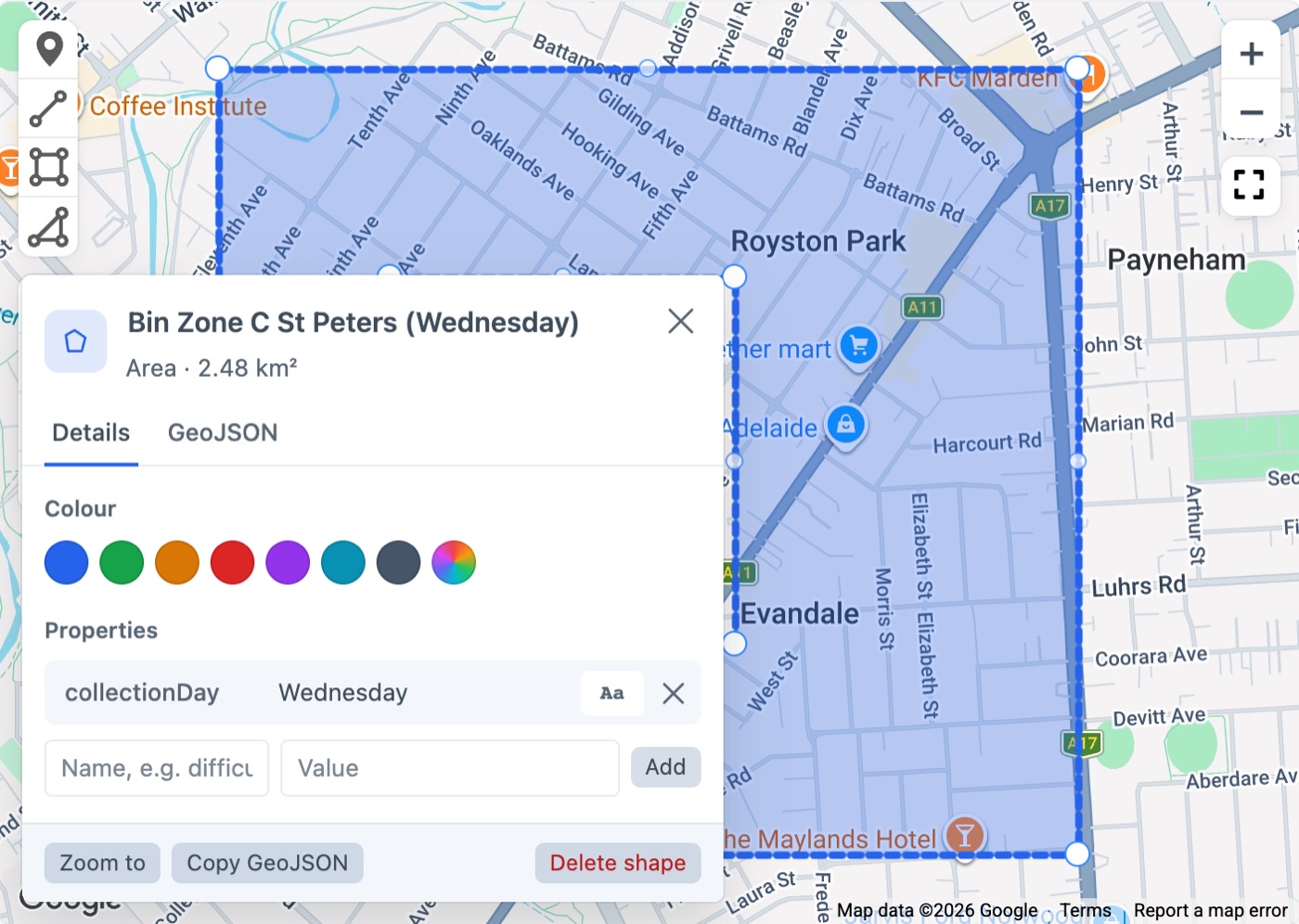
- Name: click the title to rename the shape. Front-end maps show it when the shape is clicked.
- Size: areas show their size (holes left out) and lines their length, updated as you draw. The same numbers are available in templates as
area()andlength(). - Colour: pick a swatch or a custom colour. It’s saved as the shape’s
colorand used on front-end maps. - Properties: add any details the shape needs, such as a collection day, a delivery fee or a trail’s difficulty. Click a value’s type button to store it as text, a number, true/false, a colour or JSON. Properties are saved in the shape’s GeoJSON and can be read in templates with
getGeoJsonData(). - Zoom to, Copy GeoJSON and Delete shape act on just this shape.
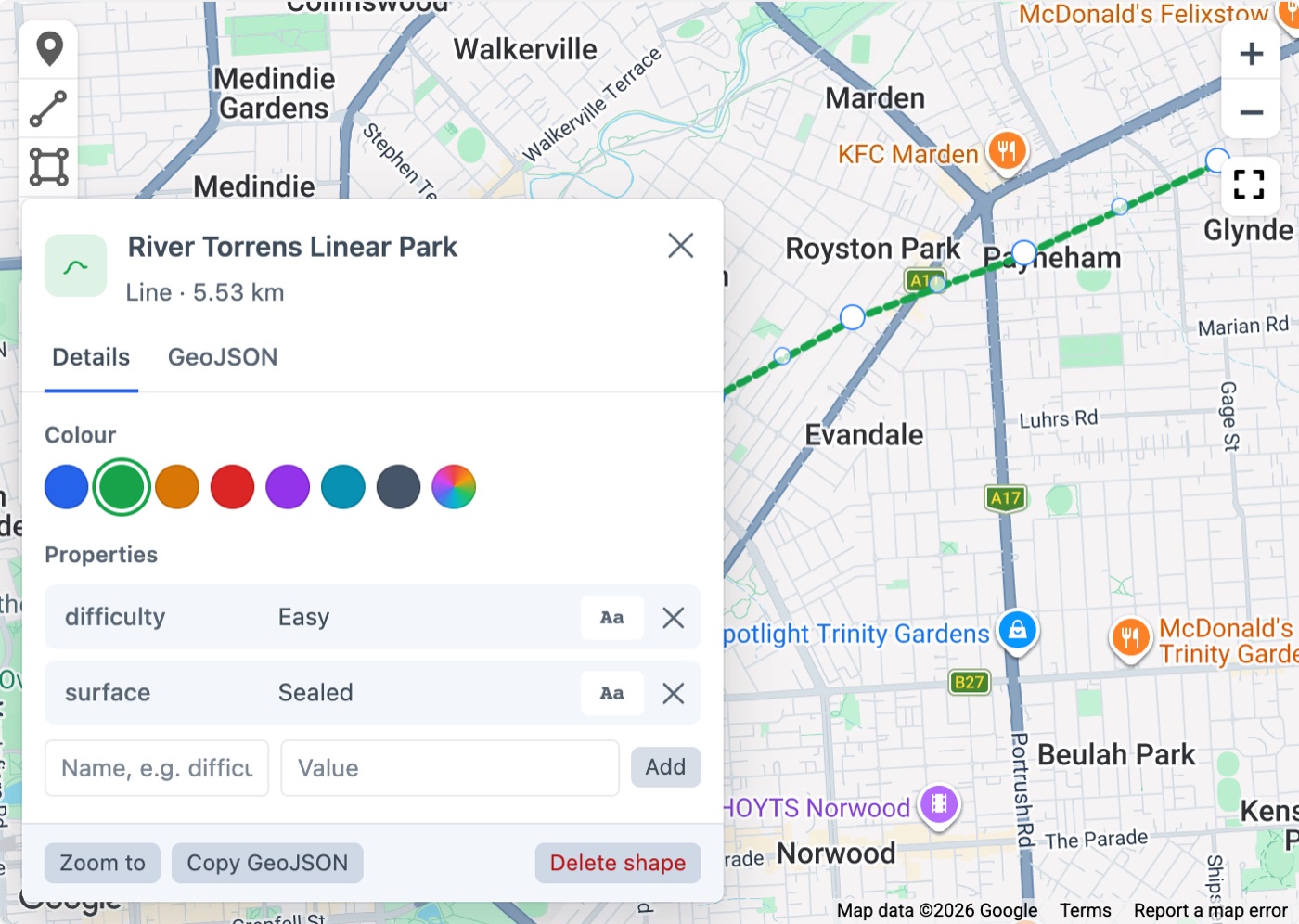
See Bin Collection Zones and Trail Maps for templates that use shape properties.
Editing GeoJSON
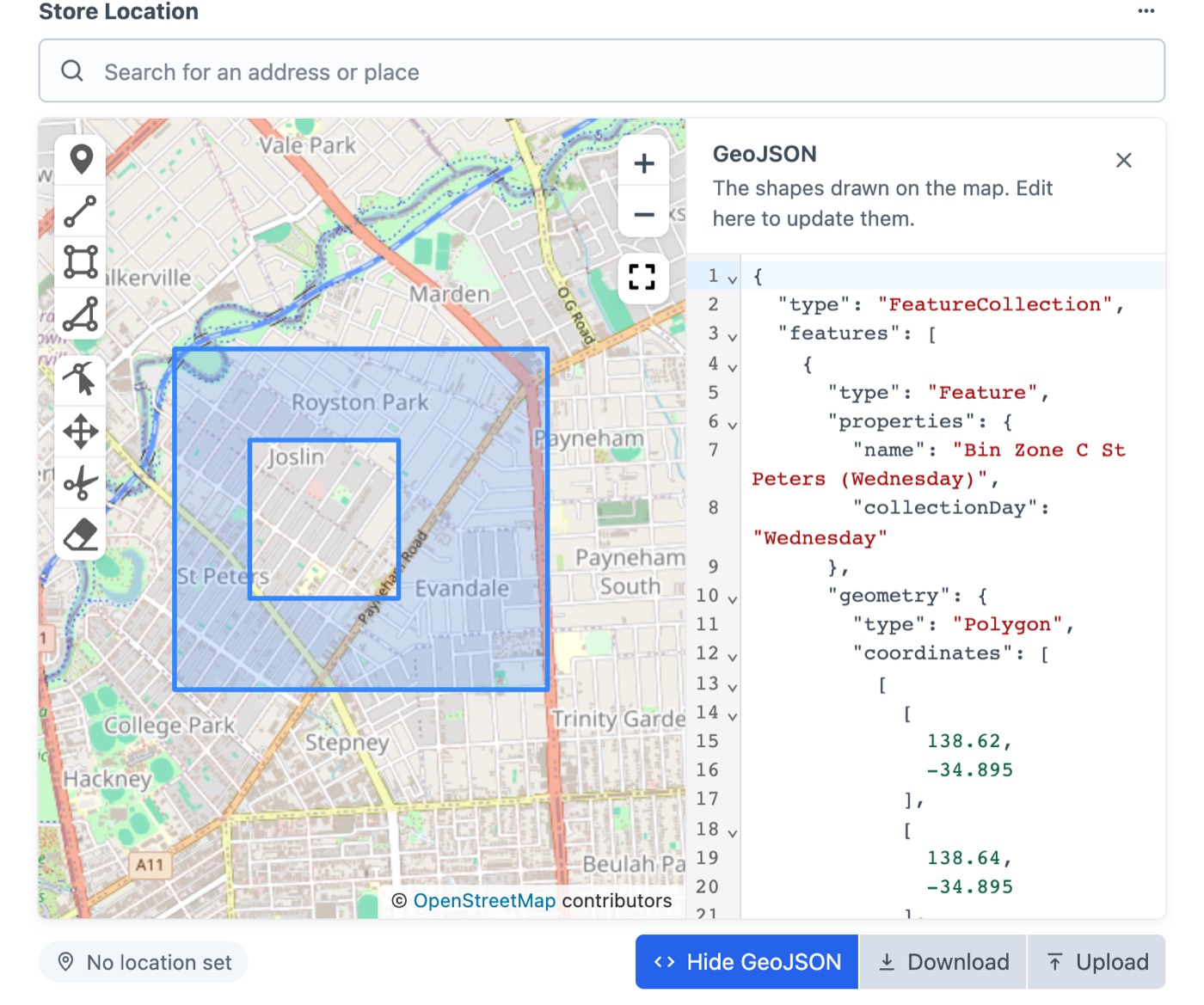
Edit GeoJSON opens the GeoJSON for the whole field beside the map. Changes in the editor update the map and vice versa. Upload loads a .geojson file and Download saves the current shapes.
TIP
GeoJSON has no circle type, so circle tools aren’t offered — draw a polygon instead.
Field settings
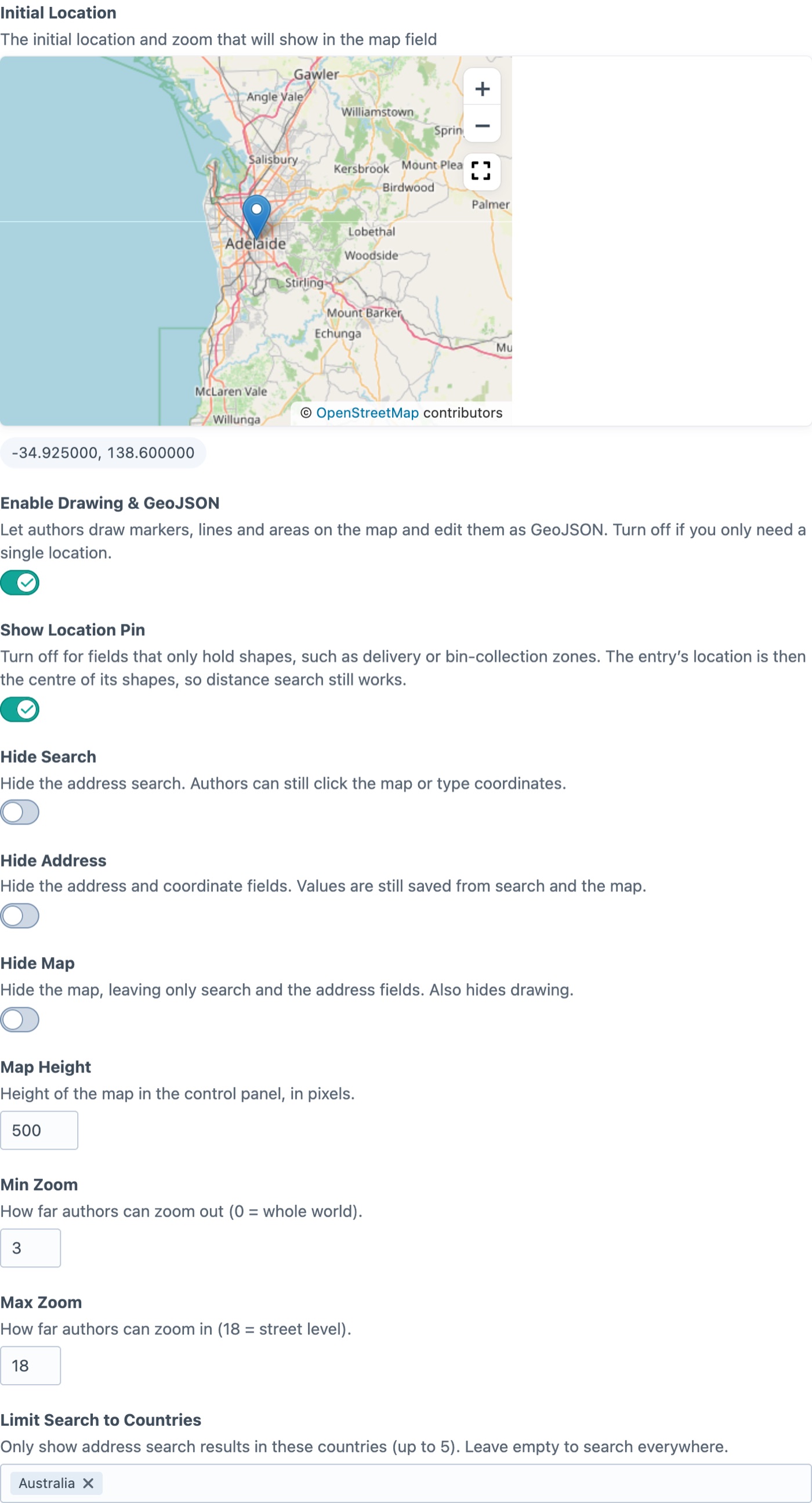
| Setting | What it does |
|---|---|
| Initial Location | Where the map starts, and its zoom, for entries without a location. Click the map or drag the pin, then zoom to the level you want. |
| Show Location Pin | Turn off for fields that only hold shapes, such as delivery or bin-collection zones. There’s no pin, and the entry’s location is the centre of its shapes, so location search still works. |
| Enable Drawing & GeoJSON | Shows the drawing tools and GeoJSON buttons. Turn off when you only need a single location; existing shapes are kept. |
| Hide Search | Hides the address search. Authors can still click the map or type coordinates. |
| Hide Address | Hides the address and coordinate inputs. Values are still saved from search and the map. |
| Hide Map | Shows only search and the address inputs. Also hides drawing. |
| Map Height | Height of the map in the control panel, in pixels. |
| Min Zoom / Max Zoom | How far authors can zoom out and in (0 = whole world, 18 = street level). |
| Limit Search to Countries | Only shows address search results in up to 5 chosen countries. Leave empty to search everywhere. |
Validation
Geo Maps checks that latitude and longitude are numbers in range and are set together, and that GeoJSON is valid (types, coordinates and nesting). Problems are shown on the field when the entry is saved.