Mapbox Maps
Use Mapbox map styles (Streets, Light, Dark, Satellite, or your own style from Mapbox Studio) for embed() maps, the locator component and the map in the control panel. It works on Lite, with no code.
With Mapbox as the map service, address suggestions, location searches and static map images use Mapbox too (see Address search with Mapbox).
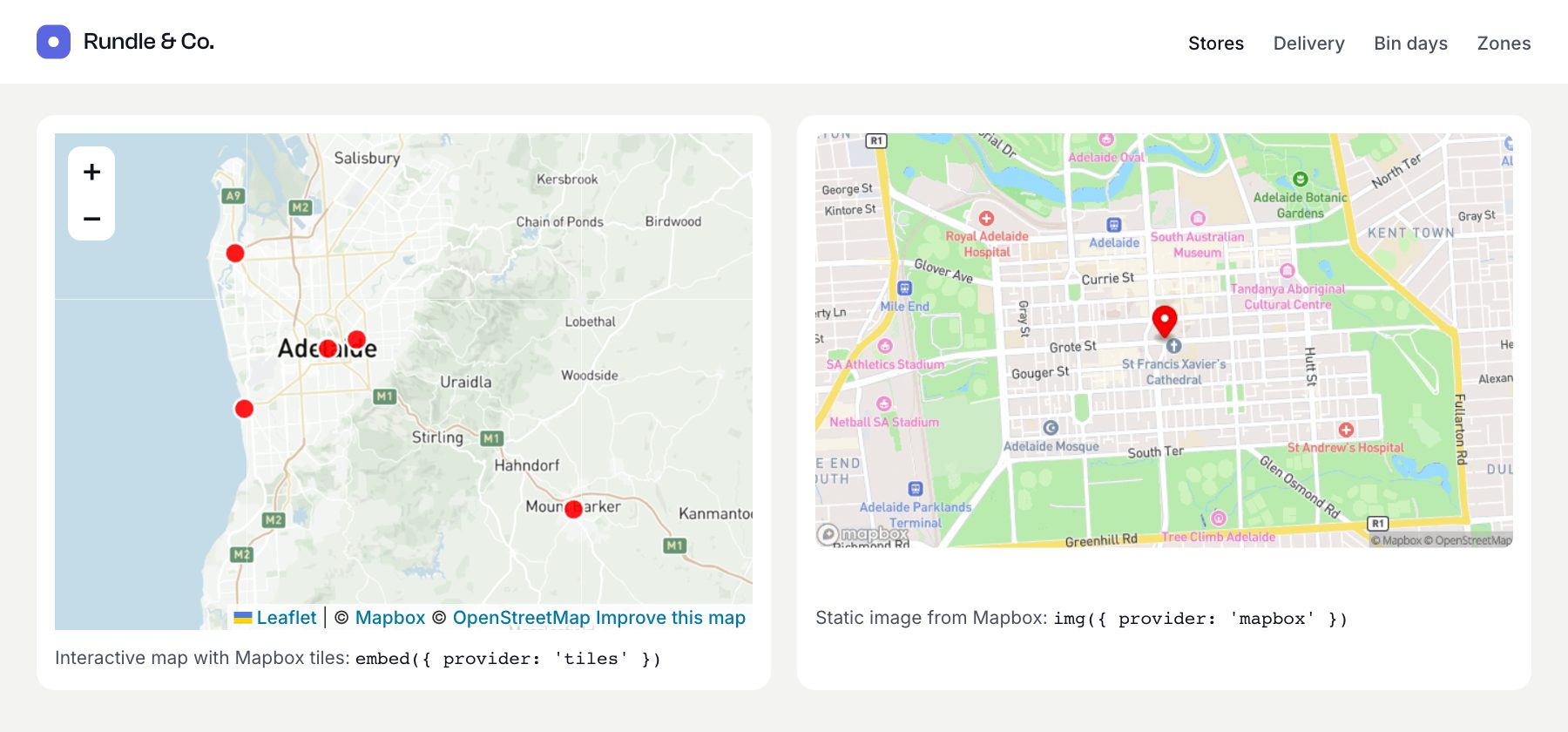
{# Interactive map on Mapbox tiles, even when a Google key is set #}
{{ craft.geomaps.embed({
  provider: 'tiles',
  markers: stores|map(s => { location: { lat: s.storeLocation.lat, lng: s.storeLocation.lng }, label: s.title }),
  fitMarkers: true,
  height: 380,
}) }}

{# Static image from Mapbox #}
<img alt="Map of Adelaide" src="{{ craft.geomaps.img({
  provider: 'mapbox',
  center: { lat: -34.9285, lng: 138.6007 },
  zoom: 13,
  width: 640,
  height: 380,
}) }}">
1. Create an access token
- Sign in at account.mapbox.com and open Tokens.
- Create a public token (it starts with
pk.) with the default public scopes. - Under URL restrictions, add your site’s domains, such as
https://example.comand your local domain likehttps://example.ddev.site. The token is visible in the page source, so this stops other sites from using it.
Add it to your site’s .env file:
MAPBOX_TOKEN="pk.eyJ1Ijo…"2. Choose Mapbox
Go to Settings → Plugins → Geo Maps and, under Map service:
- Choose Mapbox.
- Enter
$MAPBOX_TOKENin Access token, so the token stays in.envrather than your project config. - Under Style, click Streets, Light, Dark or Satellite. The preview shows the style.
- Save.
Geo Maps builds the tiles URL and adds the text credit Mapbox requires, so there’s nothing else to fill in.
Your own Mapbox Studio style
Design a style in Mapbox Studio, click Share, copy the Style URL (mapbox://styles/your-name/style-id) and paste it into Style.
In the config file
To set it per environment, use config/geomaps.php instead:
return [
    'service' => 'mapbox',
    'mapboxToken' => '$MAPBOX_TOKEN',
    'mapboxStyle' => 'mapbox/light-v11',  // or 'mapbox://styles/your-name/style-id'
];
3. Show the Mapbox logo
Mapbox’s attribution rules require the Mapbox logo and the text credit on maps that use its tiles. Geo Maps adds the text credit. For the logo, download it from the Mapbox brand guidelines, add it to your site (for example web/images/mapbox-logo.svg), and place it on your maps with CSS:
[data-geo-embed] {
  position: relative;
}

[data-geo-embed]::after {
  content: '';
  position: absolute;
  left: 10px;
  bottom: 10px;
  z-index: 1000;
  width: 88px;
  height: 20px;
  background: url('/images/mapbox-logo.svg') no-repeat left bottom / contain;
  pointer-events: none;
}
This covers every embed() map, including the locator component’s.
Address search with Mapbox
With the Mapbox service, Mapbox also finds addresses, using the same access token: suggestions in the field, addressInput() and the locator component, the address when the pin is dragged, location searches such as location: 'Glenelg SA', and missing coordinates.
Mapbox’s terms only allow storing results from its permanent geocoding, so Geo Maps uses permanent geocoding where results are saved or cached: the field, addressInput() with field (or a name starting with fields[), missing coordinates and location searches (cached for 30 days). It needs a card on your Mapbox account and is billed at Mapbox’s permanent rate. Search-only boxes, such as the locator and addressInput() with name, use Mapbox’s cheaper temporary geocoding.
To avoid permanent geocoding, set mapboxPermanent to false in config/geomaps.php. Addresses that are saved (the field, addressInput() with field (or a name starting with fields[), missing coordinates) then come from OpenStreetMap, and search boxes and location searches use Mapbox’s temporary geocoding, which isn’t cached.
If Mapbox refuses a request (Geo Maps logs a warning), or a search finds nothing, OpenStreetMap is used instead.
Good to know
- Cost: Mapbox bills by tile requests, with a free monthly allowance; geocoding and static images are billed separately. Check Mapbox pricing for your traffic.
- Privacy: visitors’ browsers load the tiles from Mapbox, which receives their IP address. Mention Mapbox in your privacy policy; see Privacy and Data.
- Check the preview: the preview under Style shows the tiles. A grey preview saying the tiles didn’t load usually means the token is mistyped, restricted to other domains, or the style URL is wrong. A token in an environment variable is previewed after saving.
- With Google Maps: to keep Google maps in the control panel but show Mapbox on your site, choose Google Maps, add
mapboxTokenand setmapProviderto'tiles'inconfig/geomaps.php. See Advanced: mixing services.